Showing posts with label Storage. Show all posts

Monday, 21 January 2019

Ink Storage organising - Vinyl Labels


Hi everyone. It's Verity here from Pretty Little Button bringing you another project. So today's project is more on an inspiration and a little how-to for cutting without a mat for beginners. I have recently been reorganising my craft room, trying to make things more efficient. My previous mini ink storage was pretty as it hung on the wall, but wasn't easy to hand when I needed them. So instead, I clear out this draw storage that sits just to the right of my desk and reutilised it for my mini inks. To make it even more efficient I decided it would be best to label which inks are ink which draws. Of course, my trusty silhouette to the rescue to make custom labels out of vinyl. The metallic vinyl was perfect for the job as it is a little darker where I store these draws. However, the metallic silver catches the light making it super easy to read in low light!

Also, these 12" vinyl sheets don't require you to cut with the mat, and there are a few simples things you need to follow to do this. So reading on for how to with ink storage organising and make your craft room more efficient. 

Card storage and organiser details: 


I have designer edition studio and do not have the weeding lines feature in the more advanced studio versions. To make it easier to weed, I drew little boxes to insert my label titles in, so I could just peel the straight away to leave the title. Also, it prevents wasting more vinyl than needed. 

Next, I added my label titles within the boxes making sure they fit within. The font I'm using is Amelia. As this is a thin-ish font, I added a 0.01 offset, just so it would be easier to cut and not tear.


Before you send to cut you need to make a few alterations to cut without a mat. Open up the page setup window. Select the drop-down menu for 'cutting mat' and select 'none'. 


You will now notice your 'cutting mat' will disappear from your design space. Before you send your to design to cut, you need to load your 'media' (Vinyl). In your machine, you need to move the rollers in order to grip your media. 

On the right-hand side, move the leaver from the 'locked' position to the 'unlocked' position as seen below: 


Next, rotate the white roller feed until the grips pop out of their little slots. Move the roller feed to the left to the next little slots as seen below: 


Put the leaver back up into the locked position. To load the vinyl, insert your sheet like you would your mat, but on your machine screen press 'load media'. You are not ready to send your design to cut. 


Remember to test cut before you cut your design out, your machine and blade can differ from the factory default settings. As you can see, my cut settings for the metallic vinyl below is quite different from the default I had above. I think I need to replace my blade!!


Remember to use your Silhouette tool kit to weed the vinyl from the boxes. Cover the labels with transfer tape and burnish onto the tape. Lift this up and position onto your draws. Again, burnish this so the vinyl sticks to your surface and peel the transfer tape off.

 *Quick tip, make sure your surface is clean for good adherence*


If this has inspired you to try this out, please post below. I would love to see it!

Until next time,

Verity


Profile Pretty Little Button Blog | Instagram | Facebook

FONTS USED:

Amelia font by Dresden Carrie, Design ID#157996

PRODUCTS USED:


Monday, 7 January 2019

Card storage and organiser


Hi everyone. It's Verity here from Pretty Little Button bringing you another project. For this week's project I wanted to make something 3D but at the same time something useful for my craft room. I stumbled across this card storage and organiser from Sweet Afton and thought this would be great. It will help me keep my cards organised so I can easily find a card to suit the occasion. Whatsmore the chipboard from Silhouette was perfect for this. This cut file was originally for A2 (American) style cards, but I often design cards larger than this, so I increased the size to fit cards 6" wide. 

Card storage and organiser details: 

To start off, I needed to adjust the size of the cut file to my size of choice, 6 inches wide. To make sure all the pieces were proportionate to one another, adjust the size of the cut file with all the items grouped together. 

Using the vertical gridlines (pull these from the right-hand rule bar into your design space), I marked out 6 inches. As I was increasing the size of the group file, I made sure the width of the back panel span the two ruler markers. This will give me a 6" wide storage container.

As I had adjusted the size of the cut file, you can see below that I can no longer cut out the larger piece out on a 12" sheet of chipboard as it is wider than 12". However, just a little deconstruction of the file to separate pieces will allow you to cut out bits individually and fit on a cutting mat. 


To do this, I right clicked the large piece and pressed ungroup. Then to detach the front panel, you can select the front panel shape and this will be separate from the remainder of the shape. 

Some shapes when ungrouped and detached from the main shape may be missing a side or a tab. You can easily draw these in with the line tool. To convert a line to a score line, select the line menu next to the line thickness window, and select the dotted line of choice. 


To make sure all the lines in the shape and connected and now small openings present from draw tabs etc, select all the lines in the shape and right click to make a compound path. Next, right click and select edit points. If notice any red circle points, this means there are openings within the path. To close the openings, move one circle over the next circle present to close it (these are usually a few mm apart - if they are cms apart, check the shape first). 

To speed up the process, as often two tabs are needed but as mirror images of themselves, copy the shape and right click. Select flip horizontally and you have a mirrored shape. 


When you separate the pieces to your liking you are ready to cut out. I wanted to show that you can even cut this pattern on an A4 sheet of paper if you are using alternative media to the chipboard from Silhouette. 


When ready, cut all the pieces out of heavyweight card or using the chipboard from Silhouette. 

Here were my cut settings for Chipboard when I selected the material. 


However, after three test cuts, I had to change the blade depth to 7 for my machine and blade to cut through the chipboard. Remember to always test cut as your machine and blade can vary the cut settings!


When all items are cut out, as well as the side/front panel decoration from patterned paper, use a strong adhesive to tabs to build your card storage and organiser. 


I have organised my cards in occasions, but you may also want to organise your cards with months of the year for birthdays. Therefore each month you can go an see what cards need to be sent to who!


If this has inspired you to try this out, please post below. I would love to see it!

Until next time,

Verity


Profile Pretty Little Button Blog | Instagram | Facebook

DESIGNS USED:

A2 card holder by Sweet Afton, Design ID#137390

PRODUCTS USED:


Saturday, 29 December 2018

Blade and Sketch Pen Organisation Box with FREE Accessory Tray file


Hello.
Janet here from the Crafting Quine blog, with a project to help organise all those invaluable Silhouette bits and pieces that accumulate when you use your machine.  I've used the Two Compartment Candy Box by Lori Whitlock, added some custom-designed accessory trays, and decorated the outside with panels cut from Silhouette Wood Effect Vinyl. The lid is also decorated with a vinyl design. I'll show you how to do all this and have included a FREE accessory tray file too.


The wood effect vinyl comes on a roll in one of three colours: Ebony, Maple and Walnut. The rolls  measure 9 in. x 6 ft. (229 mm x 1.80 m).  They have a matte wood texture and appearance and have a strong self adhesive backing. They cut like other premium vinyl although the vinyl feels a little thicker.

I used the maple colour vinyl on the base and for the decoration, and the walnut colour on the lid. The lid is decorated with a design made by welding a split design (#67270, Split Tulip Damask by Emily Dyer) to some custom wording using a decorative font (#239683, CG Bon Bon Font by Carina Gardner). The box itself is made up in dark brown cardstock.


SUPPLIES REQUIRED:
Silhouette Wood Effect Vinyl in Maple and Walnut
Dark Brown Cardstock
Weeding/Hook Tool
Scraper or Burnishing Tool
Strong Liquid Craft Adhesive
Silhouette Cameo® 3


HOW TO MAKE THE BOX


Step 1: Prepare the Files
Open the file for the box in the Silhouette Studio software. Ungroup the pieces and arrange them into cut groups for the types and colours of media.

Step 2: Cut the Cardstock 
Place all the cardstock pieces (all parts except the panels) onto the virtual mat and cut them out. Remove them from the mat and fold along the crease lines then flatten the pieces out again.

Step 3: Cut the Vinyl
Separate the pieces to be cut from each colour of vinyl. Place pieces for each colour onto the virtual mat in turn.  Click the Send tab and choose the default setting "Vinyl, Wood" as a starting point. Load your Vinyl into the cutter, either on a mat, or directly into the machine. If you do not use a mat you'll need to adjust the right hand roller inwards as the media is 9-inches wide. I find it easier to use a cutting mat, but this vinyl is quite springy and may require some extra tape at the edges to hold it flat. Carry out a test cut and reduce the Force to where it will still cut through the vinyl. The ideal is to achieve a 'Kiss-cut'; cutting through the vinyl but not the backing sheet.


Step 4: Prepare the Media
Remove (weed) the excess vinyl from around the cut pieces.  The vinyl will easily pull away from around the panels. Ease the vinyl gently from around the decorative elements and use a weeding tool to remove the small interior pieces.

Step 5: Part Construct the Box


Construct the box following the designer's instructions. Follow the link on the design's entry in the Silhouette Design Store to the tutorial page on the designer's website. Lori Whitlock has video instructions for a similar box which can be accessed by clinking on the "2 Compartment Cookie Box" link.

Step 6: Apply the Vinyl
Where possible, apply the vinyl before adhering their backing pieces to the box. Peel the panels away from the backing paper and align them carefully onto the cardstock pieces. Press them into position. Protect the vinyl with a scrap of backing paper, or clean copy paper, and rub firmly with a scraper/burnishing tool.


See details below on designing the decorative elements*. Once cut from maple vinyl, peel the backing paper away from the top third of one of the designs and place it in position on the vinyl covered lid. Peel away the remainder of the backing paper. Repeat for the other design.


Step 7: Complete Construction

Adhere the outside panels and construct the lid. Cut out and assemble the accessory trays** and place them inside the box.


The lid just drops on to the box and your storage box is complete.


*CUSTOMISE THE DECORATION

Open the Split Tulip design and resize it to fit the lid (select design, grab one of the corner sizing handles, hold down Shift, and move the handle toward the centre of the design until the desired size is reached). Type the words in CG Bonbon Font and resize them to fit too (click the Text tool, type a word, click away from the word, reselect it, open the text Style Panel, select your chosen font, select 72pt, resize the width only, if necessary, using the side handle). Make the design become one piece (select all three parts, right mouse click, and select weld).


**USE THE FREE ACCESSORY TRAYS

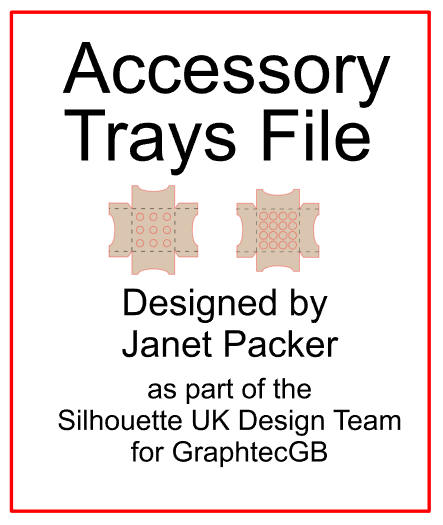
Download the FREE Accessory Trays cut file. The file is in .GSD format which can be opened with any edition of the Silhouette Studio software. From the Silhouette program select File > Open, then navigate to the downloaded file and click OK. There are two versions. You can mix and match the holes, just Ungroup each version, and duplicate or swap the sets of holes.

Download the FREE file here


I used the Wood Effect Vinyl to make these cute decorative gift boxes in an earlier post. You can read about how to make them here. They use some of Lori Whitlock's fabulous Polygon boxes.

Rustic wood effect gift boxes made with Silhouette Wood Effect Vinyl. Designer Janet Packer (Crafting Quine) for Silhouette UK. Polygon boxes by Lori Whitlock.


You can get great results by adding vinyl to cardboard. The wood effect vinyl gives a great wood look finish, and intricate decorative designs are easy to cut from the vinyl. I hope you'll try it.


Bye for now,


   Profile | Crafting Quine BlogInstagram @CraftingQuine


DESIGNS USED:


PRODUCTS USED: