EQUIPMENT:
Silhouette Cameo or Portrait
Colour printer
Quality copier paper for the weekly pages
Cardstock for the monthly overview pages.
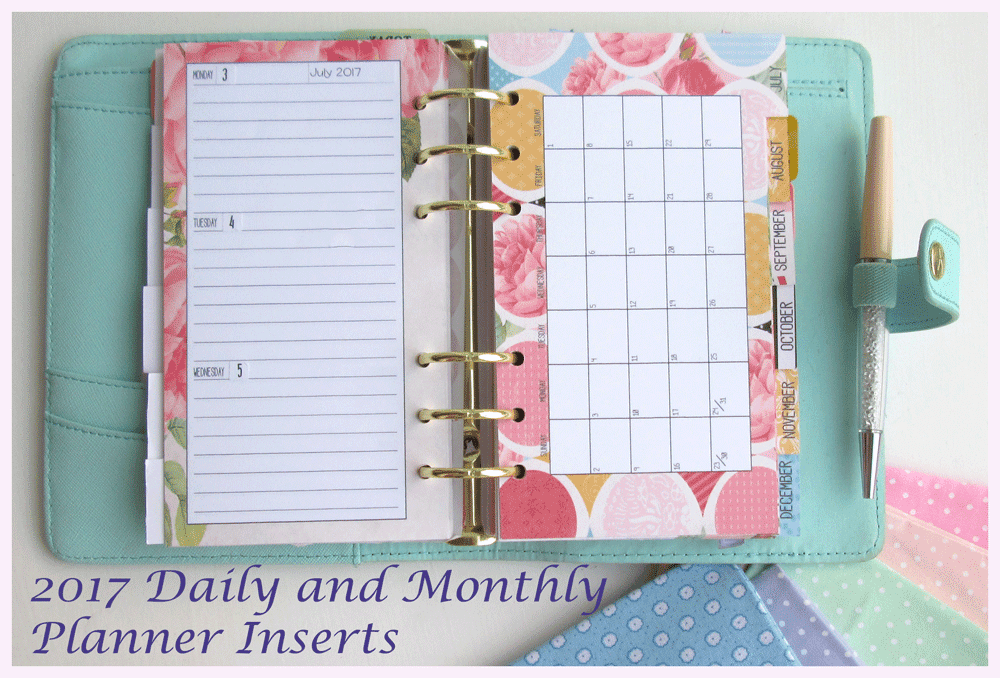
A5 floral monthly planner pages by Carina Gardner 156703
A5 floral weekly pages by Carina Gardner 156706
Last year I re-discovered the joys of having a physical planner diary so in the last few days of December 2016 I decided to check out what inserts I could get from the Silhouette Design store. I found these gorgeous designs from Carina Gardner that are for twelve monthly overviews, plus a week on two pages.
As the outside of my loose leaf planner is about A5, I thought these would be the correct size, but as anyone with a planner will know, not all planners are created equal! Carina's pages are designed at 140mm x 210mm which some brands call an A5 or Large Personal planner. The size of my KikkiK planner, is designated as a Personal planner - note there is no "large" in the name! This means that the size of my pages are in fact only 171mm x 95mm which is not even the same ratio as Carina's designs, however resizing Carina's designs for my needs did not noticeably distort them, so here is what I did.
Monthly overview divider pages (card)
Open the design for the monthly planner pages and select it. Ungroup the design. You will find the cut lines are now free to move and the 12 printed designs are all on one sheet sized 71 x 74cm. As I was going to be printing on A4 card, I used the Knife tool to separate each of the printed designs so I could move them around individually.
If you need to resize the design for a Personal Planner, draw a rectangle 17.1 wide x 9.5cm high. This is the basic page shape. Then draw a small rounded rectangle for the tabs, measuring 3.3cm x 1.5cm. See the images below. Copy these shapes so you have 12 of each. Adjust the printed design so it is slightly bigger than the size of your planner page, place the smaller "tab" rectangle as shown below, at the correct place to cut out the name of the month and Merge the tab with the basic page.
 |
| Image 1 |
Don't forget to draw six small circles for the holes to be cut for the ring binder (see Image 2 below) and using one of Carina's cut outlines, you can place these at the correct distance in from the edge, and at the correct distance apart. If you are unsure you have placed them correctly, cut out a page from cheap copier paper and check it in your planner before cutting out the card.
Do this for each month as the tab will need to be at a different part of the page each time.
Switch on Registration marks from the top menu, and I would suggest you switch Show Cut (page) border from the Design page Settings. You will find my basic page size fits just within these lines, which means you can print off two of the monthly designs per sheet of A4 card. Print the designs for January and February onto a sheet of card. Take the printed card, pop it on a Silhouette mat and feed it into your Silhouette machine. Check the blade is set at the correct depth for card. Check your computer electronic cutting settings within the software are set to Card, and send the job to be cut. If it has cut through correctly, remove the card from the machine and the mat, and fit them into your planner. Admire!
Weekly pages (thick copier paper) printed on both sides
As above, resize the weekly planner pages for a Personal planner, but in this case, you do not need tabs on the pages, which makes them simpler. However, they are more complicated, in that you will want to print each page on both sides! I always find this a bit of a challenge, remembering how to arrange them so that they print off correctly. I would strongly advise printing off a trial copy of one sheet on both sides, before sending all 52 weeks (sheets of paper) worth to your printer!
How I do this, is to
 |
| Image 2 |
How I do this, is to
- Set up my design within the software with the two pages, comprising Monday - Sunday on my A4 sheet. See image 2.
- Once you have them arranged on your design space, select both, and Group them together.
- Open the Align window from the top bar, right hand side and click on the last option, which is Centre to page. I save this as Page_front.
- Then make a Save As copy called Page_back and remove the registration marks from this to help you distinguish between front and back. You don't have to do this, but it is a good habit.
- Send Page_front to your printer (image 3) and print ONE copy. Re-feed this page into your printer so that you can print the other side, and print the Page back. If you have arranged everything correctly both printings should lie perfectly on top of each other on each side of the page. Place the side with the Registration marks on your cutting mat and feed into the Cameo. Select Copier paper on the cut settings and adjust the blade on the machine accordingly. Cut out your first weekly page.
- Once you have checked that everything is the right way round and cutting neatly, carry on with printing and cutting 27 copies of Page front. This allows for some unused days at the start and finish of the year as January 1st started on a Saturday in 2017. Once all the Front pages are printed, return them into your printer and print 27 copies of the back page on the other side.
- Now all you have to do is cut all these sheets out on your Cameo! You could of course cut them out with a slicer and punch holes by hand, but I love to have everything perfectly aligned, and so cutting with my Silhouette is worth the time it takes for me.
 |
| Image 3 |
I hope this is clear, but if you are still confused, my fellow team member Nadine, also describes how to do a double sided print and cut here.
Further ideas: Stickers for the date number and the month.
The weekly pages do not have numbers or the month printed on them. These can be written in by hand, or make and print them to stick in place later. You will find several tutorials on our blog describing how to make your own stickers. You can see in the photo below that I printed out numbers to stick beside the days of the week and a named header for each month.
I have labelled dividers that came with my planner such as Notes, Blog, Nutrition, To Do etc.. You may also like to make stickers to use as markers along the top of pages which will help you find where you noted things down. I particularly like Susie Planner tabs by Felicity Jane.
Our Team Member Sara did a blog post about making paper clip markers which can be helpful as well as decorative.
The Design store has masses of sticker designs for using in your planner and I absolutely love them, so until you get the confidence to design your own stickers that is a good place to start. Welcome to my planner world, just make sure that you don't spend all your time making your planner beautiful, it is quite addictive!


PRODUCTS USED:
 |  |